OCPP Troubleshooting Guide#
Overview#
This guide provides a systematic approach to troubleshooting OCPP-related issues with amina charging stations. Follow the steps in order to efficiently identify and resolve problems.
Troubleshooting Workflow#
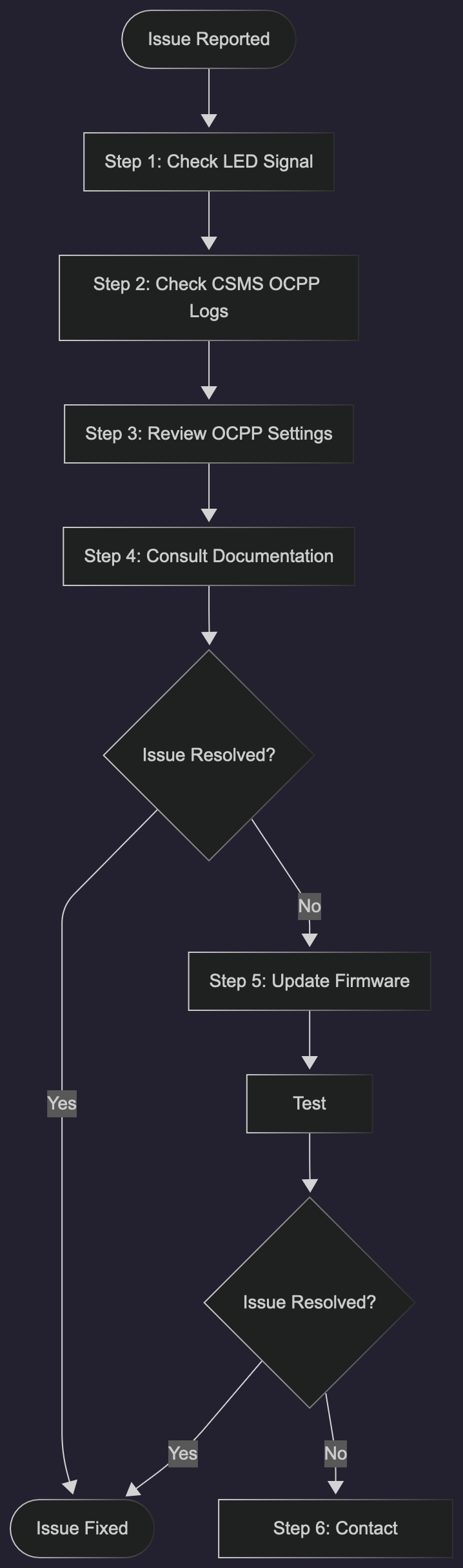
Image 1: Troubleshooting Flow#
Step 1: Check LED Signal#
The LED on the charging station provides immediate visual feedback about its operational status.
LED Status Quick Reference#
Refer to the detailed LED Signal Details section below for complete information.
Key LED States:
White (blinking patterns) = Boot/Setup sequence
Green/White (alternating) = Authorization in progress
Green (steady/blinking) = Waiting for EV
Blue (steady) = Charging active
Orange = Warning condition
Red = Error condition
Purple = Firmware update
Yellow (10 blinks) = Authorization failed
Action: Note the LED status and refer to your User & Installer Guide or the LED Signals section below for detailed information.
Step 2: Check CSMS OCPP Logs#
With the LED status as supporting data, examine the OCPP logs in your CSMS for the affected charging station.
What to Look For in OCPP Logs#
Recent Messages:
StatusNotification
Error Codes
Boot Notifications
Connection Status:
Last Seen Online
Disconnect Events
Reconnection Attempts
Configuration Changes:
ChangeConfiguration
GetConfiguration
Setting Modifications
Transaction Events:
StartTransaction
StopTransaction
Authorization Failures
Key Log Analysis Steps#
Identify the time frame: When did the issue start occurring?
Check error messages: Look for StatusNotification messages with error codes
Review connection history: Determine if the device has been offline
Examine recent changes: Check for configuration updates or system changes
Step 3: Review OCPP Settings#
Certain OCPP configuration settings may impact charging station behavior.
Common Settings to Verify#
Connection Settings:
HeartbeatInterval
Cst_AuthorizationTimeout
WebSocketPingInterval
Authorization Settings:
Cst_FreeVendActive
AuthorizeRemoteTxRequests
LocalAuthListEnabled
AllowOfflineTxForUnknownId
Cst_AuthorizationTimeout
Transaction Settings:
StopTransactionOnEVSideDisconnect
StopTransactionOnInvalidId
Reference: See the complete OCPP Settings documentation for detailed information on all configuration parameters.
Settings Check in Logs#
Look for:
Recent
ChangeConfigurationmessages that may have modified critical settingsGetConfigurationresponses showing current valuesSettings that differ from your expected configuration
Step 4: Check for Recent Configuration Changes#
Review OCPP logs for any configuration modifications that might explain the behavior.
Look for this sequence in the logs:
ChangeConfiguration.req (CSMS to Charger)
What setting changed?
When did it change?
ChangeConfiguration.conf (Charger to CSMS)
Was the change accepted?
StatusNotification (if applicable)
Did the charger behavior change after the configuration update?
Additional Troubleshooting: Offline and Reconnection Issues#
If the issue involves connectivity or offline status, use this specific troubleshooting approach in combination with the main workflow above.
Reconnection Behavior#
Important: Amina chargers automatically attempt to reconnect to the CSMS every 30 minutes when offline.
Device Offline Timeline:
Last Seen Online - Check OCPP logs for the last HeartBeat or message
Disconnect Event - Identify when the connection was lost, typically in server (CSMS) logs
Reconnection Attempts - Automatic attempts every 30 minutes
Current Status - Is the device online or still offline?
Offline Troubleshooting Checklist#
Determine last online time: Check OCPP logs for the last received message timestamp
Calculate offline duration: How long has the device been offline?
Check reconnection attempts: Look for WebSocket connection attempts every ~30 minutes
Verify network connectivity: Is the device location experiencing network issues? Use the eSim/MVNO portal
Step 5: Update to Latest Firmware#
Before contacting support, ensure your charging station is running the latest firmware version. Many issues are resolved through firmware updates that include bug fixes, stability improvements, and new features.
Check Current Firmware Version#
Via CSMS: Check the firmware version in your CSMS device information
Via OCPP Logs: Look for BootNotification messages which include the firmware version
Latest Firmware Information#
Important: Always update to the latest firmware version before reporting issues to support.
Latest Version: See Firmware Changelog for the current version
Release Notes: Review the changelog to see if your issue is addressed in recent updates
Download Link: Available in the Firmware Changelog
Update Methods#
OTA (Over-The-Air) Update:
Most firmware versions can be updated remotely via OCPP using the UpdateFirmware message from your CSMS.
After Update#
Wait for update to complete: Firmware updates take roughly 10 minutes over Ethernet, 15 minutes over LTE and 20 minutes over Wi-Fi
Device will reboot: After installation, the device will restart automatically
Verify new version: Check BootNotification in logs to confirm the new firmware version
Test the issue: Reproduce the original problem to see if it’s resolved
Recommendation: Deploy firmware updates using a “rolling update” approach to identify issues early before impacting all chargers.
Step 6: Contact Support#
If the issue remains unresolved after updating to the latest firmware and following all the steps above, contact amina support with the following information:
Information to Provide#
Device Details:
Serial Number
Firmware Version (confirm it’s the latest version from changelog)
Issue Description:
LED Status
When Started
Frequency
User Impact
OCPP Data:
Recent Error Codes
Last Seen Online
Configuration Settings
Relevant Log Excerpts
Troubleshooting Done:
Steps Attempted
Results Observed
Changes Made
How to Contact Support#
See the Support page for contact information and support channels.
LED Signal Details#
Boot and Startup States#
LED Status |
Meaning |
Description |
|---|---|---|
No light / No power |
Charger has no power |
Check power connection and circuit breaker |
1 white blink every 4 sec |
Starting |
Charger is powering up |
2 white blinks every 4 sec |
Connecting |
Searching and connecting to network (4G LTE) |
3 white blinks every 4 sec |
Connecting to CSMS |
Searching for connection to Charge Point Operator |
Continuous rapid white blinking |
Charging current not set / Factory reset |
Current wheel is in position 0 - set charging current |
Connection and Normal Operation States#
LED Status |
Meaning |
OCPP Status |
Action Required |
|---|---|---|---|
Steady White |
Standby |
Connected to CSMS, no vehicle connected |
None - Normal operation |
Steady Green |
Vehicle connected |
Available - ready to charge |
None - Normal operation |
Blinking Green |
Charging in progress |
Charging |
None - Normal operation |
Steady Blue |
Charging |
Charging - power delivered |
None - Normal operation |
Warning States#
LED Status |
Meaning |
OCPP Error Code |
Action Required |
|---|---|---|---|
Steady Orange |
Ground Failure (RCD-DC leakage) |
GroundFailure |
DC leakage detected. Disconnect vehicle and try again with another vehicle. If error persists, contact installer. See Error Codes |
Blinking Orange |
Vehicle error |
EVCommunicationError |
Unplug charger and try connecting again. If error persists, contact installer. See Error Codes |
Critical Error States#
LED Status |
Meaning |
OCPP Error Code |
Action Required |
|---|---|---|---|
Steady Red |
General error |
HighTemperature / OverCurrentFailure |
The charger has detected an error. Unplug charger and try connecting again. If error persists, contact installer. See Error Codes |
Blinking Red |
Relay error |
PowerSwitchFailure |
Critical error - Product must be replaced. One or more relays have malfunctioned. No one should touch the charger until power has been turned off. Contact installer immediately. See Error Codes |
Other States#
LED Status |
Meaning |
Description |
|---|---|---|
Steady Purple |
Updating |
The charger is updating its firmware |
Alternating Red/White |
Invalid wiring |
Unsupported installation of electrical wiring - contact installer |
Quick Reference: Common Issues#
Issue: Charging Won’t Start#
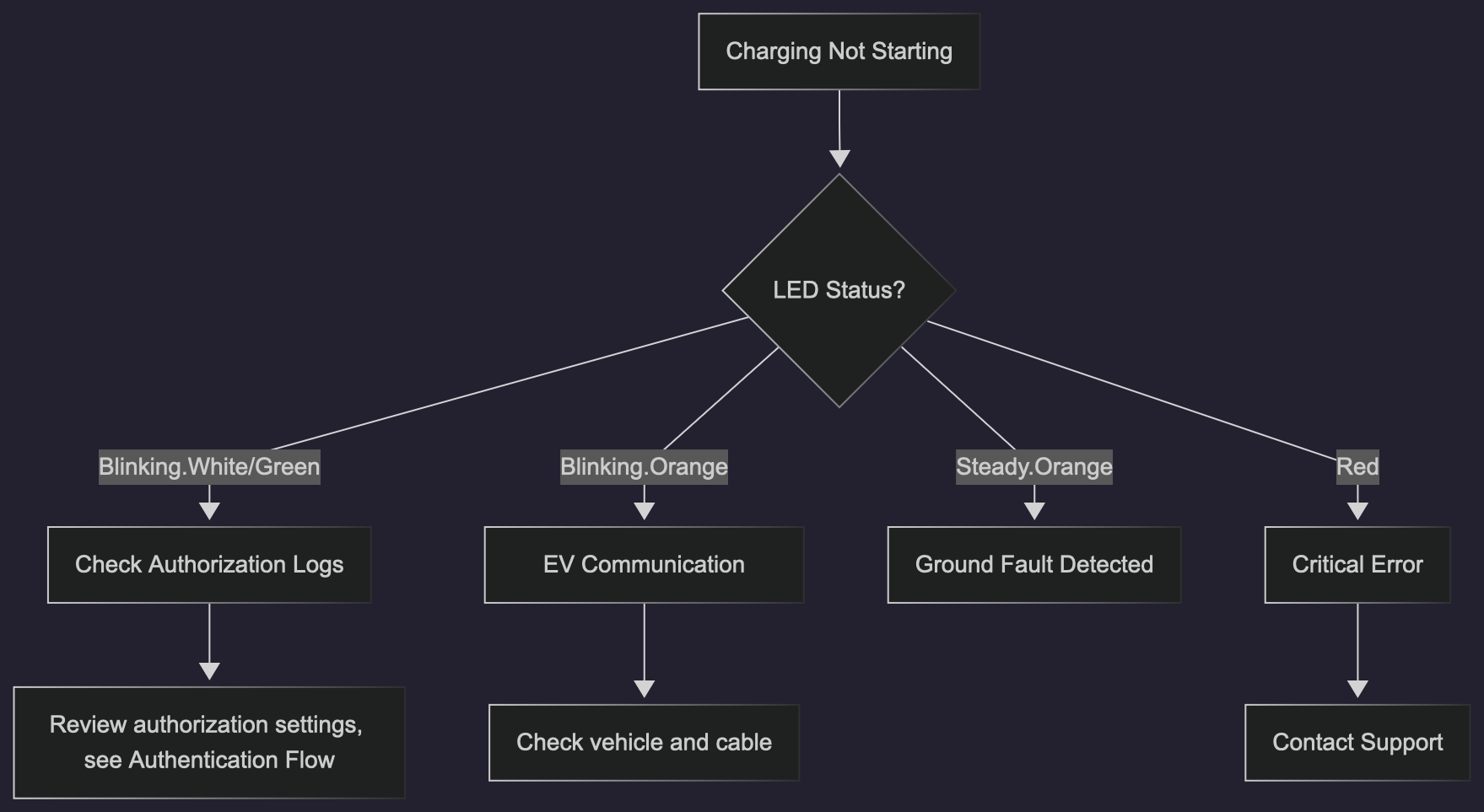
Image 2: Troubleshooting Flow#
Issue: Device Offline#
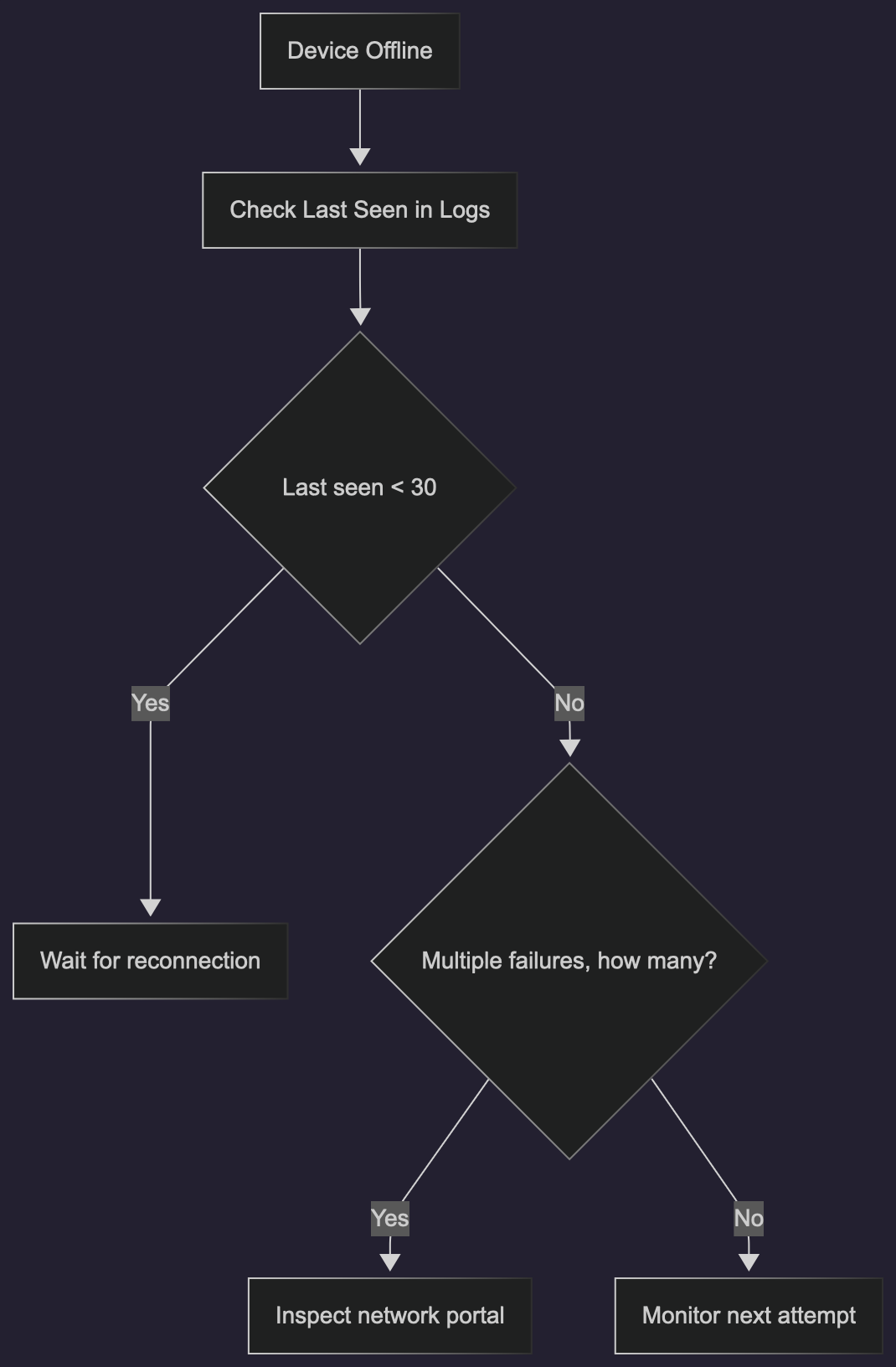
Image 3: Troubleshooting Flow#
Issue: Unexpected Transaction Stops#
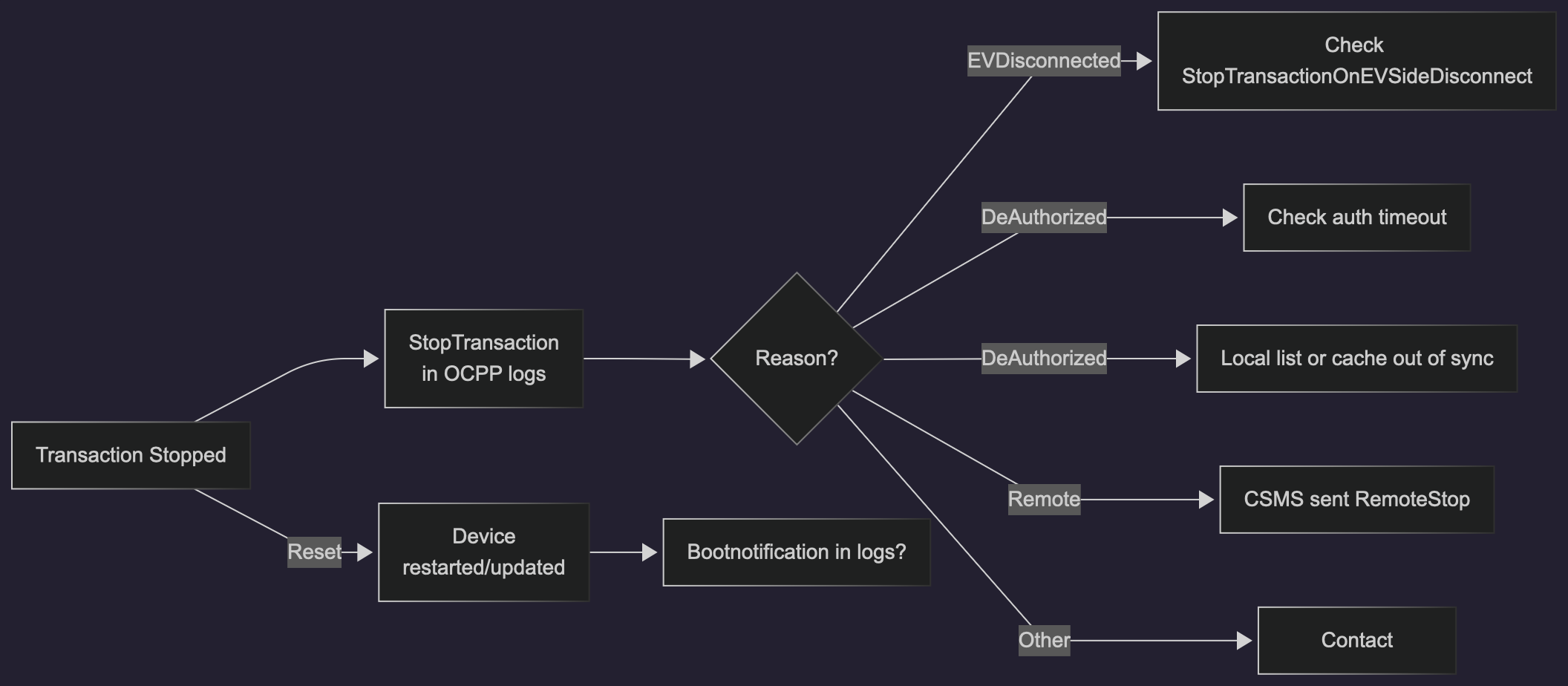
Image 4: Troubleshooting Flow#
Additional Resources#
OCPP Error Codes - Complete error code reference
OCPP Settings - Configuration parameters guide
OCPP Implementation - General OCPP information
OCPP Authorization - Authentication and authorization details
OCPP CSMS Migration - Migrate to new CSMS
OCPP Root CA Bundle - Supported Certificates in Root CA Bundle
Support - Contact information and support resources